

Customer Onboarding Videos: Types, Scripts and Examples
A customer onboarding video helps a new customer understand or complete a specific step: prepare for kickoff, run a workflow, resolve a problem or recognize progress. Use it where showing the action helps, and provide written instructions for people who need to scan, search or follow without video.
Below are six types, practical script examples, original Corso demonstrations and planning guidance for length, cost and delivery. Suggested timings are starting points to adapt to the task and audience.
What a customer onboarding video is (and the four jobs it does)
Definition: a customer onboarding video is a short, single-outcome video that moves a new customer one step closer to first value.
Give each lesson a clear outcome. Related steps can share one video, but separate unrelated tasks so viewers can find the part they need.
Four common uses are:
- Welcome and set expectations. The customer signed. Now they need to know what happens next, and who owns it.
- Teach a core workflow. One path, from empty state to a real outcome inside your product.
- Unblock a stuck user. A short answer, delivered at the moment someone stalls.
- Replace a repeated CS explanation. When someone on your team says the same paragraph for the third time, record it.
For repeated explanations, estimate the existing staff time and the share reusable guidance might replace. The onboarding best-practices guide includes a capacity calculator. Production, maintenance and remaining live support still consume time.
One caveat decides whether any of this works. Video is a component of onboarding, never the onboarding itself. It sits inside a sequence, next to a step people already stall on. So if that sequence is not mapped, start with the onboarding framework.
When video beats text (and when it does not)
Video can help in four situations.
- UI navigation. "Where do I click" is a spatial question, so a spatial answer wins.
- Multi-step workflows. Demonstration can make the sequence and resulting screen states easier to follow.
- Tone and reassurance. A named presenter can introduce the team and explain what happens next.
- Launches and interface changes. New screens need a guided first look.
Documentation wins in four others.
- Reference material. Field definitions, limits, permissions, error codes.
- Troubleshooting trees. People jump between branches instead of scrubbing a timeline.
- Anything users search mid-task. Ctrl+F beats a play button.
- Anything that changes weekly. Consider the update effort before recording a frequently changing screen.
A long product tour can make a quick answer difficult to find. Use chapters for a related sequence and separate lessons for independent tasks. Longer recordings can be useful for complex practice or reference when navigation and scope are clear.
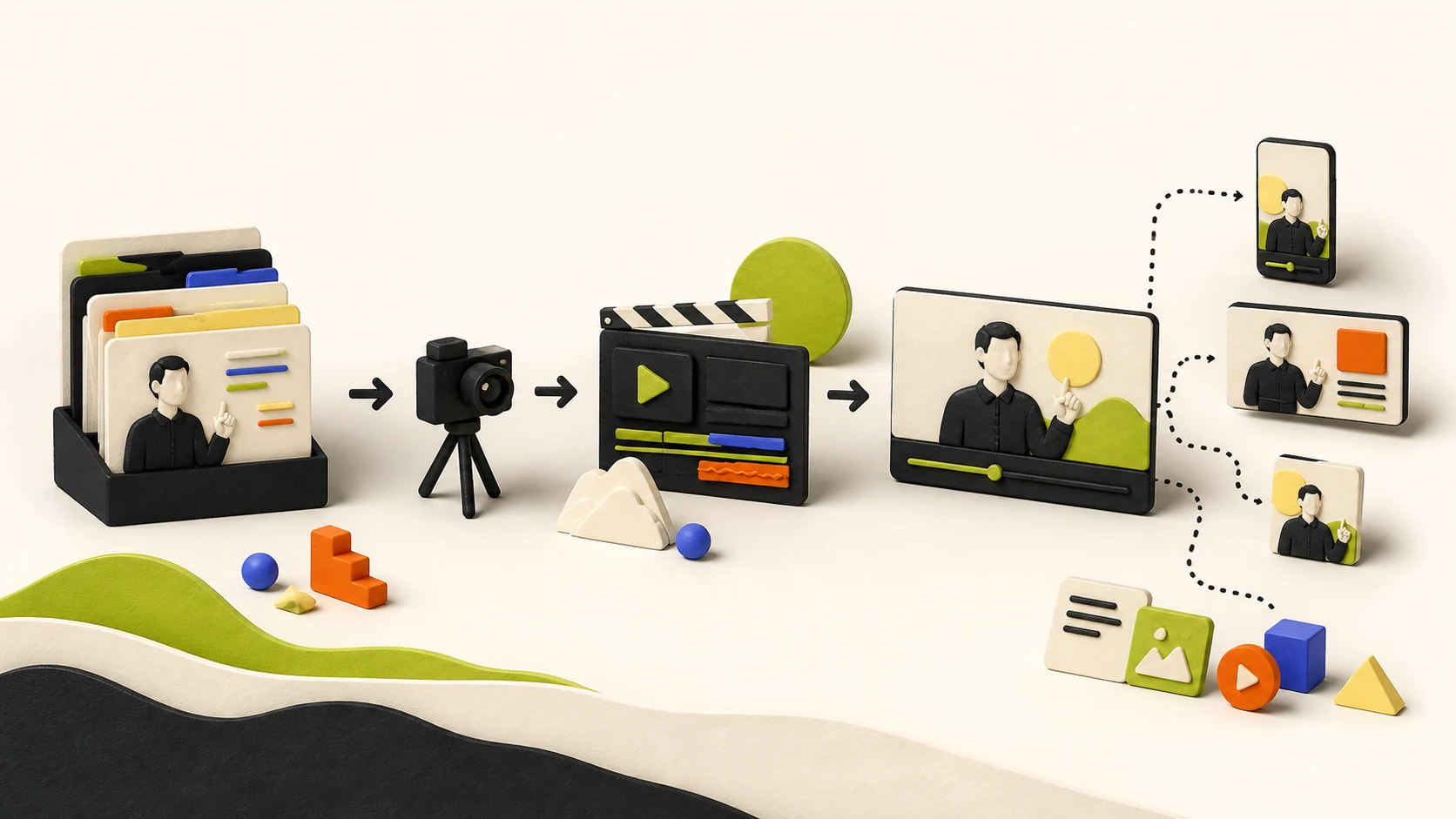
The six customer onboarding video types, with an example of each
The Corso examples are original demonstrations built without disclosing client material. They show production choices; they are not client case studies or evidence of measured adoption gains. All of them sit on the Corso portfolio page.
Choose who produces each asset based on complexity, reuse, accessibility and update needs. Internal teams, freelancers and studios can all be appropriate; recurring use does not automatically require an agency.
1. Welcome video
What it does: sets expectations for the onboarding period and puts faces to names. Where it lives: the post-signature email, plus the portal or academy home page. Target length: 60 to 90 seconds. Who builds it: you, on a webcam, this week.
Script example: “I’m [name], your onboarding lead. Our first milestone is [outcome]. Before [date], please nominate the administrator and confirm a kickoff time using the link below. Reply here if either step is blocked.”
What to steal: name the humans, name the timeline, name the first milestone. Then stop. A clear personal recording may be enough; use production support if language, accessibility or presentation requirements justify it.
2. Kickoff prep video
What it does: front-loads context so the kickoff call starts at step three, not step zero. Where it lives: the calendar invite and the reminder email. Target length: two minutes maximum. Who builds it: you, once, then reuse it.
Use this format to explain prerequisites before the meeting. Send it with the agenda, alongside your intake questionnaire. Cover three things: what the call decides, what the customer needs ready, and what happens afterward.
Script example: “At kickoff we will agree [decision] and test [workflow]. Please bring [approved sample] and invite [role]. Do not send passwords or customer records in reply. The secure access instructions are linked below.”
What to adapt: end with the preparation required and an alternative way to get help.
3. Core workflow walkthrough
What it does: shows the shortest path to first value, one workflow and nothing else. Where it lives: the day-one email, the empty state in-app, and the academy path. Target length: two to three minutes. Who builds it: an internal producer or specialist, depending on screen complexity, accuracy and the required finish.
Corso demonstration: the two-part HRIS workflow onboarding series. It uses a constructed demonstration interface to show a workflow in focused parts. Watch how the sequence is divided and how screen movement supports the explanation.
What to steal: the series structure. Give each part a defined outcome and explain the dependency between them. Use the actual interface or a clearly labeled, accurate reconstruction; diagrams can help explain concepts the screen does not show.
4. Feature deep-dive
What it does: teaches one feature to customers who are already past first value. Where it lives: in-app, triggered by usage or by the absence of usage. Target length: under two minutes each, built as a series. Who builds it: an internal team or specialist with a consistent production and update process.
Place the lesson where eligible users encounter the feature, and retain a searchable reference link. Trigger it only when the role and workflow make it relevant.
Corso demonstration: the Slack workflow enablement piece, an animated walkthrough that shows one workflow in context.
What to steal: one feature per video, plus a naming convention that survives twenty of them. Plan the set inside your customer training plan before producing the first one.
5. Milestone and check-in video
What it does: marks progress, previews the next stage, and keeps momentum between live calls. Where it lives: a personal email from the CSM. Target length: 45 to 60 seconds. Who builds it: the CSM, unscripted, in one take.
A rough 45-second recording can deliver most of the value without a personalisation platform, as long as it names the customer and points at something specific in their account. Treat vendor case studies as examples, never as a benchmark for your own sequence.
Script example: “Your team completed [milestone]. The next step is [action] with [owner] by [date]. This link opens the relevant instructions. Let me know if the timing needs to change.”
What to adapt: be specific while avoiding sensitive information in a recording that may be forwarded.
6. Troubleshooting and FAQ video
What it does: deflects the five questions your support queue keeps answering. Where it lives: the help centre article and the support macro. Target length: 60 to 90 seconds per question. Who builds it: either, depending on volume.
Corso demonstration: the internal process walkthrough, which turns a multi-step process into one clear path using interface motion and decision points.
What to steal: the topic-selection method. Pull last quarter’s tickets, group them, then prioritize topics by frequency, impact and whether guidance can address the cause. Compare requests per eligible account over equal windows and account for concurrent changes.
Anatomy of a customer onboarding video that gets watched
Agree the learning structure before polishing the production. Use this four-part skeleton as a starting point:
The onboarding video script skeleton 1. First five seconds: "By the end of this video, you will have [outcome]." 2. Body: show the workflow once, slowly, in the real product. No detours. 3. Recap: one line. "That is [outcome], in [n] steps." 4. Close: exactly one next action. Not three.
Make the primary next action clear. If the viewer may need help or an alternative path, include that option without obscuring the intended step.
Format is the second choice, and it moves cost more than anything else.
| Format | Fits | Relative cost |
|---|---|---|
| Screen capture with narration | Any workflow inside your product | Lowest, and fastest to update |
| Animated interface motion | Dense screens, sensitive data, a UI you cannot show raw | Middle, and it survives small UI changes |
| Talking head | Welcome, milestone, anything where trust carries the message | Middle, gated by scheduling |
| Interactive scenario | A judgment call rather than a click path | Highest |
That last row needs a caveat. When the skill is a decision, video alone underperforms, because watching a choice is not practising one. Our embassy interview readiness lesson shows the difference: choices carry consequences.
Plan accessibility during scripting: accurate captions, written steps or a descriptive transcript, narration that explains important visual actions, and an accessible player. Captions alone do not convey visual-only information to someone who cannot see the screen. The W3C guidance on describing visual information explains the options. Assign every asset an owner and an update trigger.
Planning length, cost and turnaround
These are example production scopes, not universal runtime limits or guaranteed delivery dates.
| Video type | Example length | Relative effort | Planning allowance | Internal production possible? |
|---|---|---|---|---|
| Welcome | 60 to 90 sec | Low | Days | Yes |
| Kickoff prep | Up to 2 min | Low | Days | Yes |
| Core workflow walkthrough | 2 to 3 min | Medium | 2 to 3 weeks | Yes, with suitable expertise |
| Feature deep-dive | Around 2 min each | Medium | 1 to 2 weeks per unit in a series | Yes, with an update process |
| Milestone and check-in | 45 to 60 sec | Low | Same day | Yes |
| Troubleshooting and FAQ | 60 to 90 sec | Low to medium | 1 to 2 weeks per batch | Either |
Turnaround follows the planning ranges in our production guide. It assumes a stable demo environment, one consolidated review round and a named approver, so scope changes will move the dates.
Published vendor ranges provide context, but compare quotes against the same scope. Synthesia’s 2025 guide puts training video at $1,000 to $10,000 per finished minute, while D-MAK’s 2026 vendor guide publishes $8,000 to $25,000 for a mid-tier video and $25,000 to $75,000 for an enterprise series. Those ranges differ because one prices runtime and the other prices scope. Both vendor ranges were checked on 5 September 2026; neither is a neutral market average. Our training video production page carries the full breakdown, and corporate training video production covers employee-facing budgets.
When additional production effort is useful
Invest additional effort where it solves an observed problem: illegible screens, unclear narration, missing captions, inconsistent versions or a complex decision that needs explanation. Test a representative draft with intended users before scaling the series.
Where to place a customer onboarding video so it gets seen
Place the recording beside the task it supports and keep a searchable reference location.
- The onboarding email sequence. One video per email, matched to that email’s single ask. Our onboarding email templates show where each drops in.
- In-app, at the friction point. Empty states, first-run screens, and the step your funnel data flags.
- The customer academy or LMS. Where walkthroughs become an ordered path instead of scattered files.
- The help centre. Troubleshooting videos belong beside the article, never on a video hub.
- The kickoff deck. Prep video in the invite, walkthrough in the follow-up.
Trigger logic turns those placements into a system.
| Trigger event | Video that fires | Where it lands |
|---|---|---|
| Contract signed | Welcome | Post-signature email |
| Kickoff booked | Kickoff prep | Calendar invite and reminder |
| No activity by day three | Core workflow walkthrough | Email plus in-app prompt |
| First value reached | Milestone | Personal email from the CSM |
| Feature unused by day fourteen | Feature deep-dive | In-app, next to the feature |
| Ticket matching a top-five topic | Troubleshooting | Support macro and help centre |
The day-three and day-fourteen triggers are examples. Check eligibility, recent activity, delivery frequency and an opt-out or help path before sending a reminder. Our automated client onboarding playbook covers the wiring, and your onboarding checklist names the first trigger worth building.
How to measure whether your customer onboarding videos work
Use viewing data to diagnose distribution and usability, then measure the task outcome:
- Viewing and completion. Distinguish average percentage watched from the share reaching a defined endpoint. Check your player’s treatment of rewatches and autoplay. Use the drop-off curve to investigate specific moments; a fixed 50% threshold cannot identify the cause.
- Task success and activation. Compare the agreed outcome among comparable users. A raw viewer/non-viewer gap is an association because viewing is self-selected. Use a credible evaluation design before calling it a lift caused by video.
- Requests on taught topics. Compare topic-level requests per eligible account across equal windows, noting release changes and support access.
- Time to first value. Report the share reaching value within the window and the duration among those that do, with unfinished accounts visible.
One rule governs all four. Measure against the step the video should unblock, never against total views. Low view counts may be appropriate for a narrow problem; high counts alone do not demonstrate learning. The customer education KPIs page carries the formulas.
FAQ
How long should a customer onboarding video be?
It depends on the type. Welcome and milestone videos run 45 to 90 seconds. Kickoff prep stays under two minutes. A core workflow walkthrough runs two to three minutes, and a feature deep-dive stays under two. Complex procedures can take longer. Use chapters, practice pauses or separate task-based lessons when that helps the user.
How much does a customer onboarding video cost?
Published ranges vary widely, because per-minute pricing hides scope. Synthesia’s 2025 guide lists $1,000 to $10,000 per finished minute for training video, and Clutch’s pricing guide describes reviewed video projects as typically below $10,000 (checked 5 September 2026). This covers video production broadly, not only onboarding lessons. Your position depends on format, revision rounds, language count and how fast your expert replies.
What should a customer onboarding video include?
One outcome in the first five seconds, one workflow shown once in the real product, a one-line recap, then exactly one next action. Captions ship by default. Leave out the company history, the feature tour and the second call to action.
Do onboarding videos actually reduce churn?
Honestly, nobody can promise that from published data. Video may help customers learn a workflow, but a raw comparison between viewers and non-viewers cannot establish its effect on churn. Measure task performance and support demand, then evaluate business outcomes with a credible comparison and an appropriate time window.
Start with the workflow you explain on every call
If new customers stall before first value, the fix is not a customer onboarding video library. A pilot can identify a suitable workflow, test a representative lesson and agree how to evaluate it in context. That evidence can inform the wider product adoption strategy.